

Appearance
Go-live checklist
Who this is for: Admin, Tenant owner, Duty lead
What you'll achieve: Generate a sample week, review gaps, publish, and mark the school live
Before you begin
Complete Initial setup until the wizard shows Ready to go live (or open the Go live card):
- School type chosen
- Staff imported or consciously skipped for later sync
- Duty areas and time windows saved
- Weekly template names accepted, edited, or left for rebuild to pick
- Grade cover order reviewed
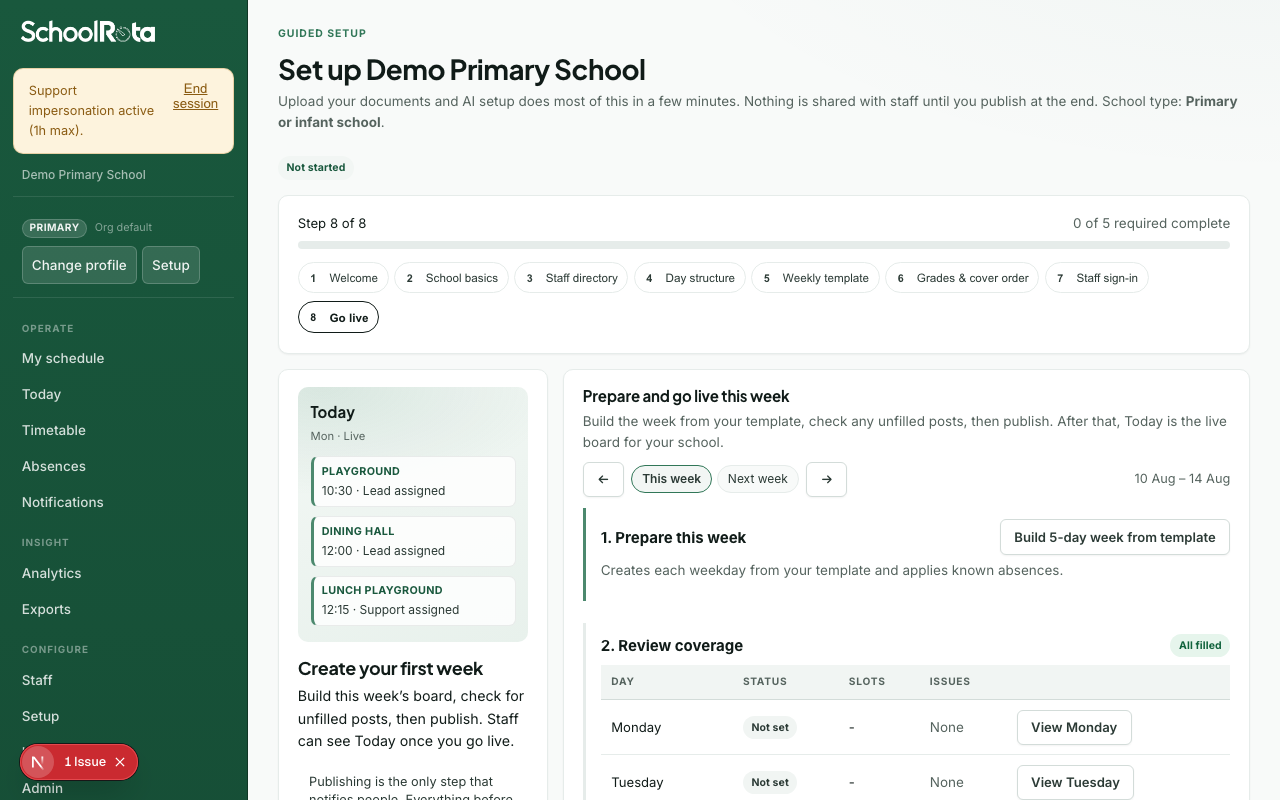
Steps
- Open Setup and go to the Go live card, or use the go-live panel when the badge shows Ready to go live.
- Build a sample week from your template (runs the cover engine). Do this before Finish setup later. If you leave without building, we ask once.
- Review the coverage line: filled or unfilled. Each weekday is one row. View a day to preview posts in a dialog (setup stays open). Unfilled posts appears only when a duty still needs a person. Weekly-block overlaps (PPA or last year's duty at the same time) are expected and do not block publish. Tune those on Today after you go live if you want a different person.
- Fix issues by adjusting template assignments, duty tiers, headcounts, or commitments - then rebuild if needed.
- Publish the week (locks days and notifies per rules).
- Select Mark live so setup state becomes Live.
You can also run the same build → review → publish flow from Today or Timetable using Build week and Publish week. After go-live, Copy last week repeats the previous week's people and posts onto the week you have open (drafts, no engine). Review week and clash resolve stay on Today.
Acceptance checks
- [ ] Every core zone has a lead where required
- [ ] Unfilled posts are zero - or consciously accepted with a plan
- [ ] Soft conflicts reviewed (teaching / weekly blocks) and any same-time other-school duties accepted as At risk or swapped on Today
- [ ] Last-resort use is explained and acceptable for the sample week
- [ ] A test user receives an in-app (and optionally email) notification on publish
- [ ] Week export downloads successfully
- [ ] Microsoft 365 schools: profile photos configured if you want faces instead of initials (after staff have access)
What happens next
- Today board for daily operations
- Rota change requests for staff asking to come off a duty
- Recording absences for same-day cover
- Analytics after a few live days