

Appearance
Signing in
Who this is for: All users
What you'll achieve: Open your school portal and sign in with SSO or email and password
Before you begin
- Your school’s subdomain (for example
demoorriverside) - An invited account (email + temporary password from your admin)
Portal URL
Each school has its own subdomain on schoolrota.com. The welcome email includes the exact address. It looks like:
https://riverside.schoolrota.comUse the subdomain your school chose at signup (for example riverside, kenley). Bookmark that host. Sign-in is on that site.
Staff who mainly need their own day can use the SchoolRota staff app instead of the browser. First sign-in still uses school SSO or email and password; Face ID only unlocks that device afterwards.
If you do not remember the address, open Log in on the main website. Enter the school name, the short portal name, or paste the full address, and you are sent to that school’s sign-in page. If more than one school matches the name, pick yours from the list. The finder does not look up accounts by email.
Trusts with several schools
After you sign in, use the School menu in the sidebar to switch school. You stay on the same portal host.
Steps
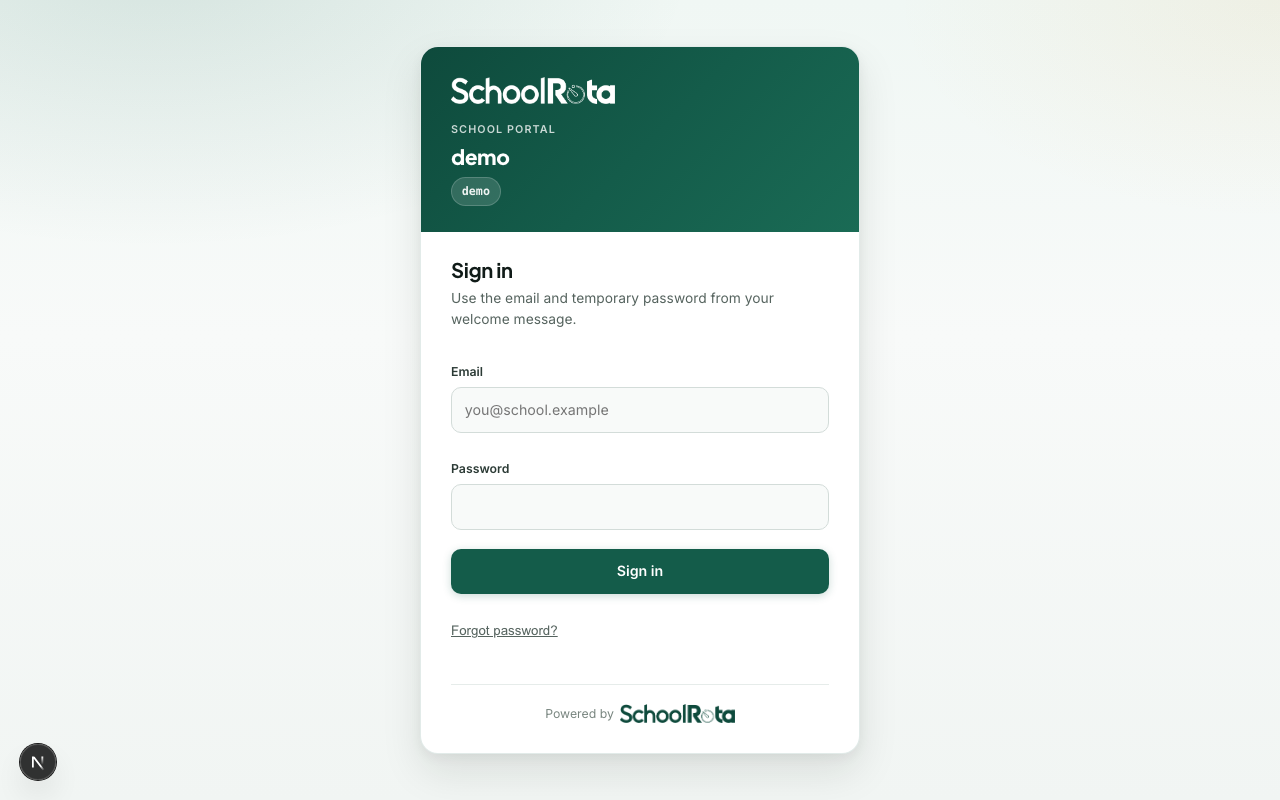
- Open your school’s login URL, or use Find your school portal if you only know the school name or short portal name.
- If your school has SSO enabled, select Sign in with Microsoft (or Google/Okta).
- Otherwise enter your email and password and select Sign in.
- If this is a local-password owner, admin, or duty lead and you have not enrolled MFA yet, you see a first-step authenticator card. Scan the QR code, confirm a code, then Done. After that, new schools open the guided setup wizard.
- Once MFA is on, later sign-ins ask for a six-digit authenticator code (or a backup code) after your password.
- After the school is live, you land on your role’s home. My schedule for staff (personal timetable), Today for duty leads and office staff. Admins who still have setup unfinished stay in the wizard until they skip or go live.
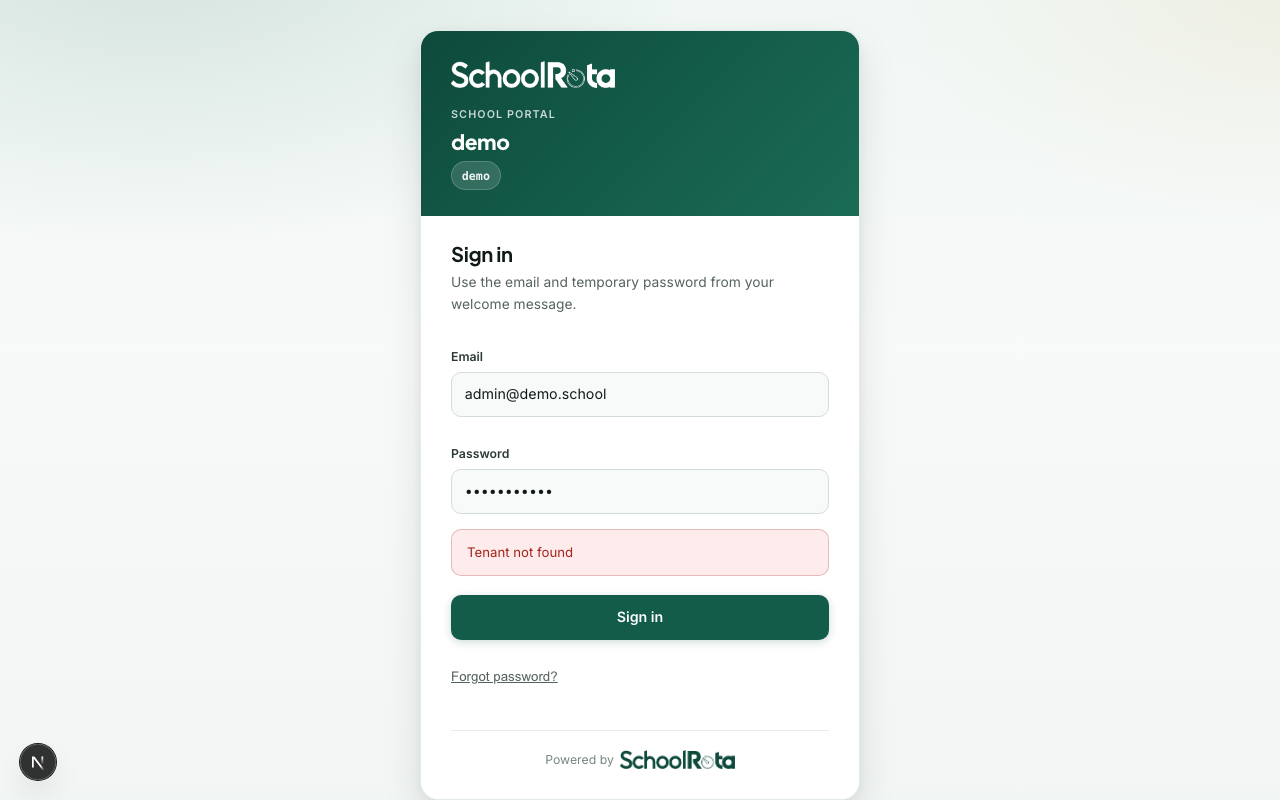
Demo credentials (local only)
| Field | Value |
|---|---|
admin@demo.school | |
| Password | changeme123 |
Production
Never use demo passwords in production. Change temporary passwords after first login when your school process requires it.
Forgot your password?
On the sign-in page, choose Forgot password? and enter your email. If a local password account exists for that address, you will receive a reset link (valid for one hour). SSO-only accounts must sign in through your school provider.
Complete the reset
- Open the link in the email. It returns you to your school’s portal to set a new password.
- Enter a new password and confirm it.
- Select Reset password, then sign in with the new password.
If the link is missing, expired, or shows “invalid”, request a new reset from the sign-in page. In production, email delivery requires a real provider (EMAIL_PROVIDER=resend with RESEND_API_KEY) - local dev logs emails to the console instead.
Sign out
During first-run setup, select Sign out in the top header.
Once the full portal is open:
- Open the sidebar (on a phone, tap Menu).
- Select Sign out at the bottom of the list.
You can also sign out from Account, or from Admin if that page is available for your role.
Current limitations
- SAML IdPs are not supported yet: use OIDC (Entra, Okta, Google). See SSO setup or the IdP pilot runbooks.
- MFA (local password accounts): owners, admins, and duty leads enrol an authenticator on first sign-in, then enter a code on later visits. Office users may enrol later from Account. SSO accounts use MFA at your identity provider.
Troubleshooting
| Problem | What to try |
|---|---|
| Wrong school | Check the subdomain in the address (for example riverside in riverside.schoolrota.com), or start again from schoolrota.com/login |
| Finder says it could not find the portal | Try the school name (for example Riverside Primary), the short name from the welcome email, or paste riverside.schoolrota.com |
| Invalid credentials | Confirm email spelling and temporary password with your admin |
| Redirected back to login | Session expired: sign in again |
| Reset link invalid or expired | Links last one hour; request a new reset from Forgot password? |
| No reset email in production | Confirm admin set EMAIL_PROVIDER=resend and staff email is correct |