

Appearance
Your first setup
Who this is for: Tenant owner, Admin
What you'll achieve: A published first week, with a clear choice on every card
You only do this once. After that, each week is a copy you can tweak. The title on each card tells you what this step is for. Finish the card, then press Save and continue. Staff see nothing until you Publish. You stay in this wizard until the school is ready to go live.
Practice files (fictional Oakfield Primary, safe to import on a blank school):
- Sample staff list
- Sample duty rota (CSV)
- Sample duty rota (text)
- Sample teaching timetable (only if you use the Lessons card)
Watch the setup walkthrough
About nine minutes. This is a real run of the wizard, with captions and voice. The same film is on the first setup card in the product, under Watch: complete setup in the real app.
Do not press Load demo training data if you want to walk the real empty-school path with these files. If you already have, the owner can press Start over at the top of Setup (before go-live) and type the school name to start the wizard again.
The cards, in order
The wizard is four stages, not seven jobs: staff list then last week's rota, check and amend, people and lunches, then go live. A typical primary shows: Staff and rota → Staff directory (if you skipped the list) → Day structure → Who is on duty → Staff lunches → Who we ask first → Go live. Invite extra publishers later from Settings.
Lessons & blocks appears for secondary, or when teaching is on. If you do not see it, add busy slots later from Staff → Weekly blocks.
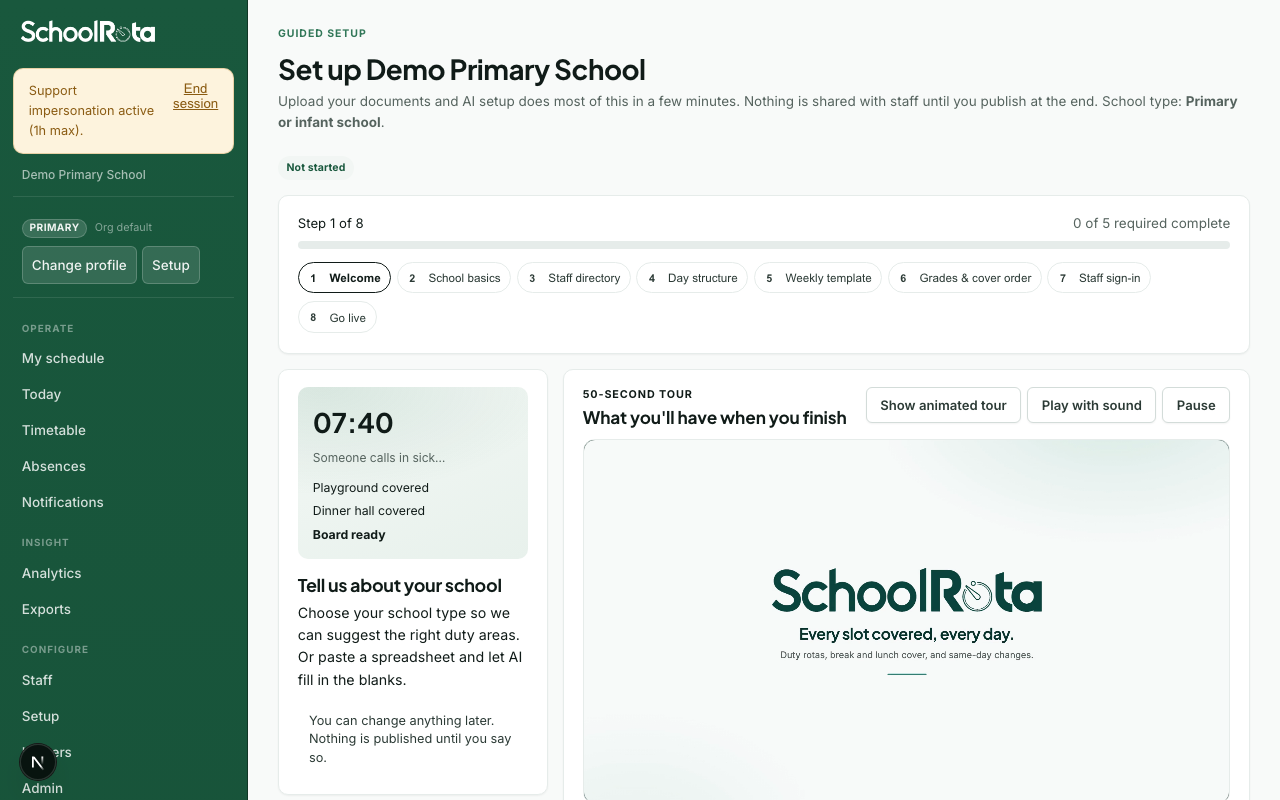
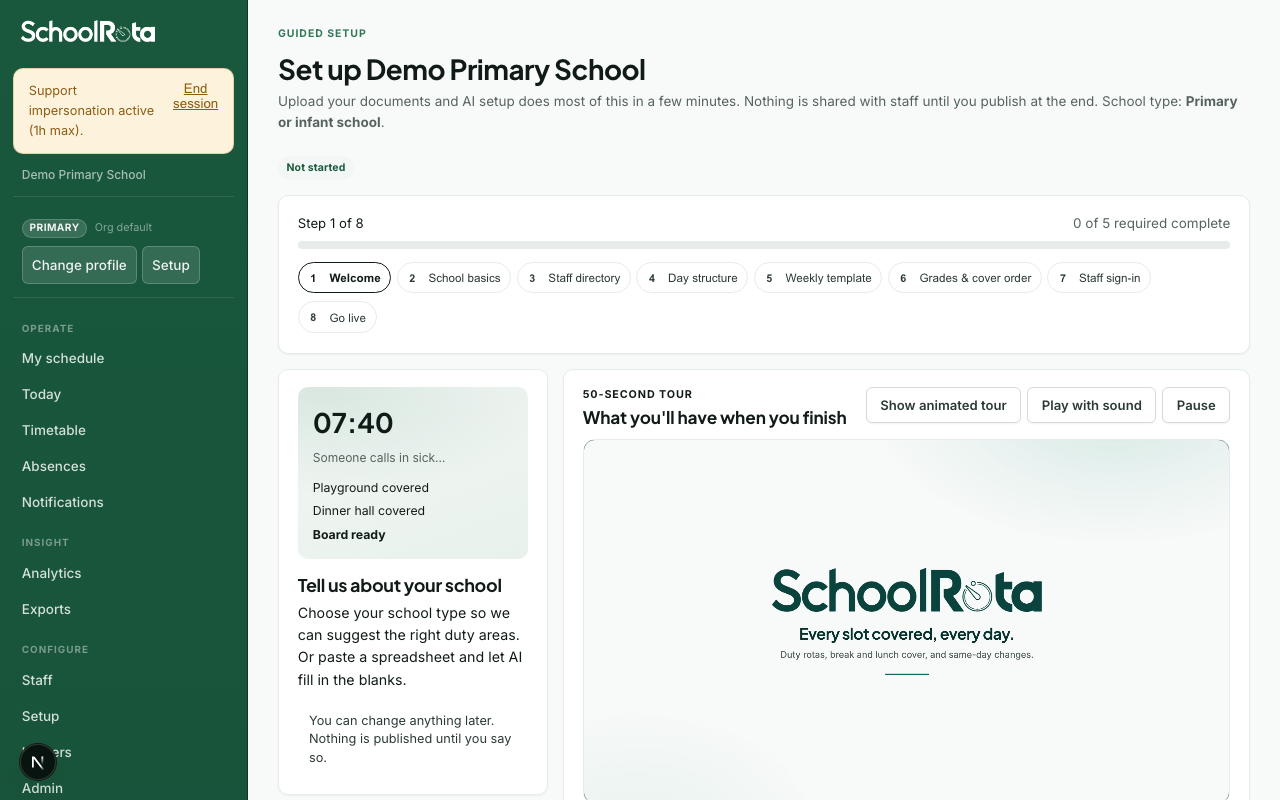
1. Add staff, then last week's rota
The header says you only do this once. Pick the school type, then add a staff list, then upload the duty cover you already run.
| Where to click | Confirm Primary, Nursery, or Secondary (under Change school type). Then 1. Staff list: choose the spreadsheet, check the names, Add staff to the directory. Then 2. Last week's rota, Apply zones & times. |
| Recommended | Primary unless you are a nursery or secondary. Upload the staff list first (mapping starts as soon as you choose the file; nothing is saved until you add them). Then upload last week's duty rota. Teaching assistants Often. Office and leadership Only if needed. |
| You can change later | School type: Change school type on this card, or Admin → School. People: Staff. Times: Day structure. |
Duty cover can be one spreadsheet, Word, PDF, or photo, every personal timetable at once (up to 40), or one zip of those personal files. A SchoolRota week export (the Word file from Week) is fine: we read the zone tables, keep the times and how many people were on each post, and treat Teachers Lunch as a staff break, not a duty post. SchoolRota shows a short count of playgrounds, hall, and times. You must apply that summary before you continue. Upload alone does not save the rota. Names that do not match the staff list are listed so you can add, link, or dismiss them. It does not pin weekly names yet.
Other ways to start (keep closed unless you need them): set up by hand, or load labelled demo data for training.
Press Save and continue after both files are in. The footer says Continue without files or Continue without a rota if you have not uploaded yet. That asks once, then takes you to add areas and times by hand. Upload alone does not save the rota: you still need Apply zones & times.
2. Staff directory
This card is hidden if you already imported people on the first screen. You only see it when the directory is still empty.
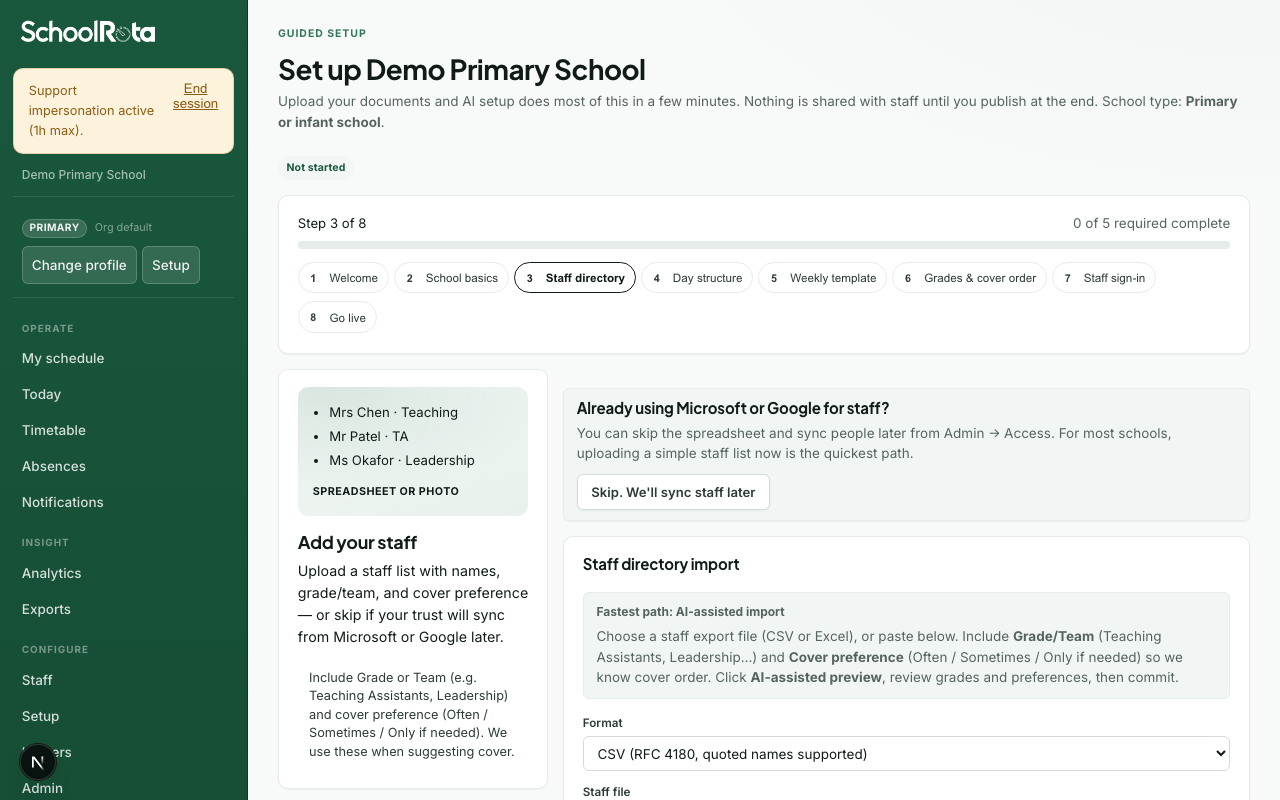
| Where to click | Download staff template, fill Name and Cover preference, upload or paste. |
| Recommended | Import now. |
| You can change later | Staff page. Trusts: Add from another school. |
Other options: skip only if you will sync from Microsoft or Google later.
3. Day structure (duty areas and times)
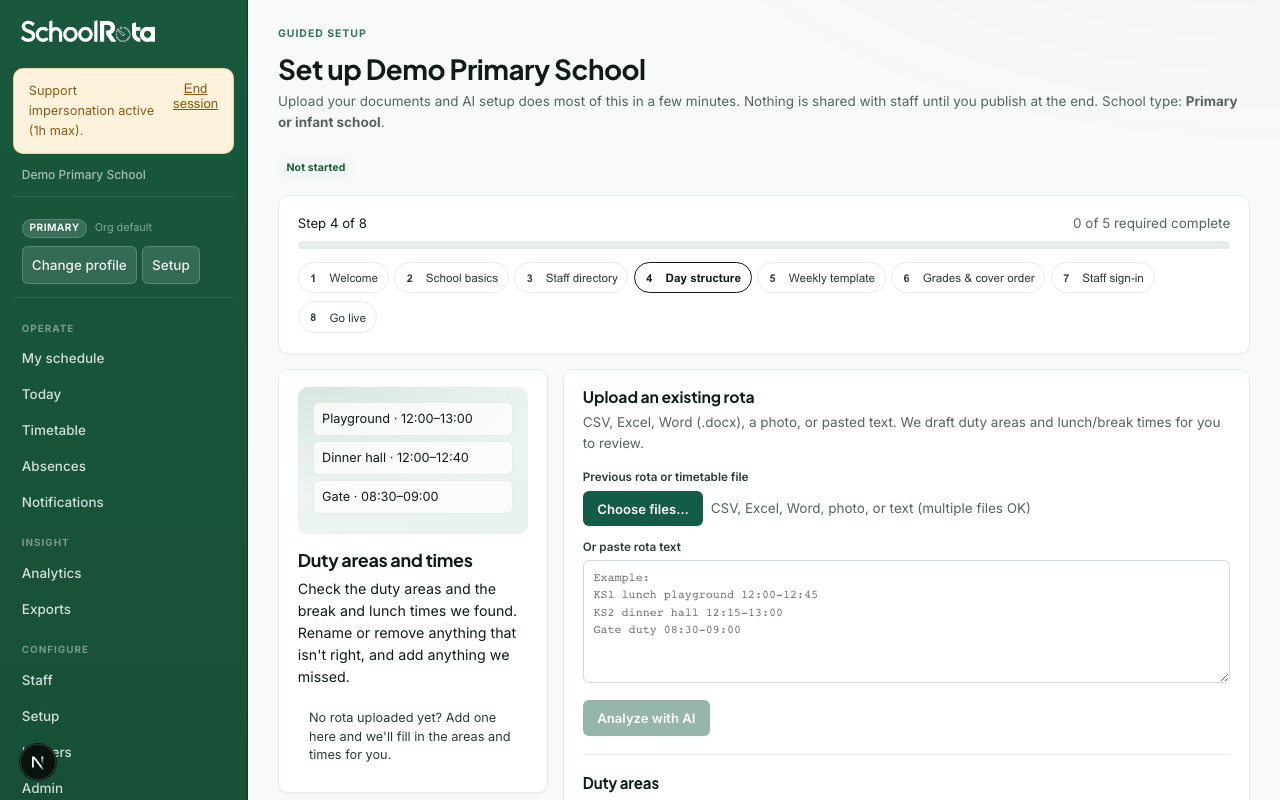
| Where to click | If you already uploaded a rota: open Check or edit duty areas, then open a duty area to rename it, edit the listed times, and Save times. Tick junk names (zone labels, group titles) and use Not people (selected) or Not people (all). Otherwise Add suggested … posts, then open a duty area and set times. |
| Recommended | Keep playground, hall, and cloak times that match your day. Add breakfast or after-school if you run them. |
| You can change later | Rename posts, change or remove a time window, or add another time. Use Start over at the top of Setup if you need to replace the uploaded rota. |
Children's KS1 then KS2 lunch: open the hall or playground and Add another time. That puts people on duty.
Answer Do any duty areas need more than one person at the same time? Yes opens the cover numbers (people needed, a first-aider skill, or Split for a handover). Change a number, press Save Mon (or that day) for one session, or Copy to other days for matching times Mon-Fri. Then rebuild the week on Go live. Need a lead stays off unless you tick it. No keeps one person on each post. If you continue without answering, we ask once: continue with one person on each duty?
4. Lessons and weekly blocks (busy slots)
Choose Yes or No. No is right if you only run break and lunch duty. Primary often hides this card. If you continue without answering, we ask once.
| Where to click | Lesson CSV, or Open Staff to add weekly blocks for PPA, phonics, a meeting, or intervention. |
| Recommended | Add a block when someone must attend that session every week. Cover will not put them on a post in that window. |
| You can change later | Staff → Teaching, Staff → Weekly blocks. |
A weekly block says they are busy. Pinning (next card) says they should be on a duty every week. Those are different.
Practice file: sample teaching timetable.
5. Weekly template (pinning)
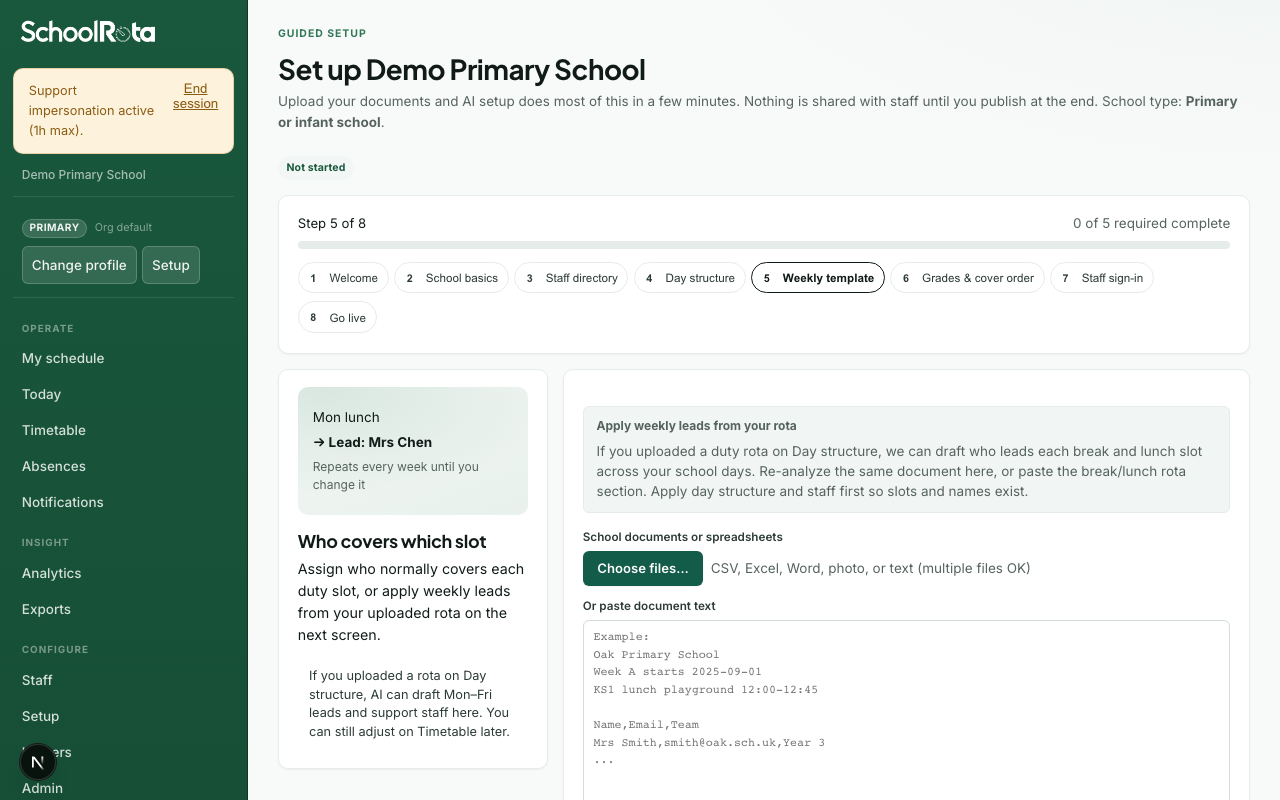
| Where to click | Accept these names if last year's rota is still right. The page starts with a count only. Open Review pinned names to replace or remove someone, or Assign someone else to pin one more. Don't pin anyone if rebuild should pick cover. |
| Recommended | Pin people who always do that post. |
| You can change later | Replace or Remove on this list. Change one day from Timetable without changing the weekly pattern. If a pinned person is off sick, they come off that day; they stay on the list for later weeks. |
6. Staff lunches (own break, off duty)
This card appears after you have people in the directory and have checked last week's rota. Named lunches on that rota should already be listed.
| Where to click | Answer Should we keep staff lunch breaks free of duty? Then, if Yes, prefer Flexible window. Set the sitting (for example 11:30–14:00) and break length (usually 30 minutes). Tick people. Save. |
| Recommended | Flexible when people take a short staggered break so some stay on duty. Fixed only when a group always sits together for a short time (for example 12:00–12:30). If you started with Fixed and want stagger, switch to Flexible and press Save this lunch break. Then build or rebuild the week. |
| You can change later | Staff → Weekly blocks. Choose No if staff stay available at lunch. Continue without a window asks once. |
Anyone you do not assign stays available for duty. That is allowed.
This is not children's dinner. Hall and playground sittings are times on Day structure.
7. Grades and cover order
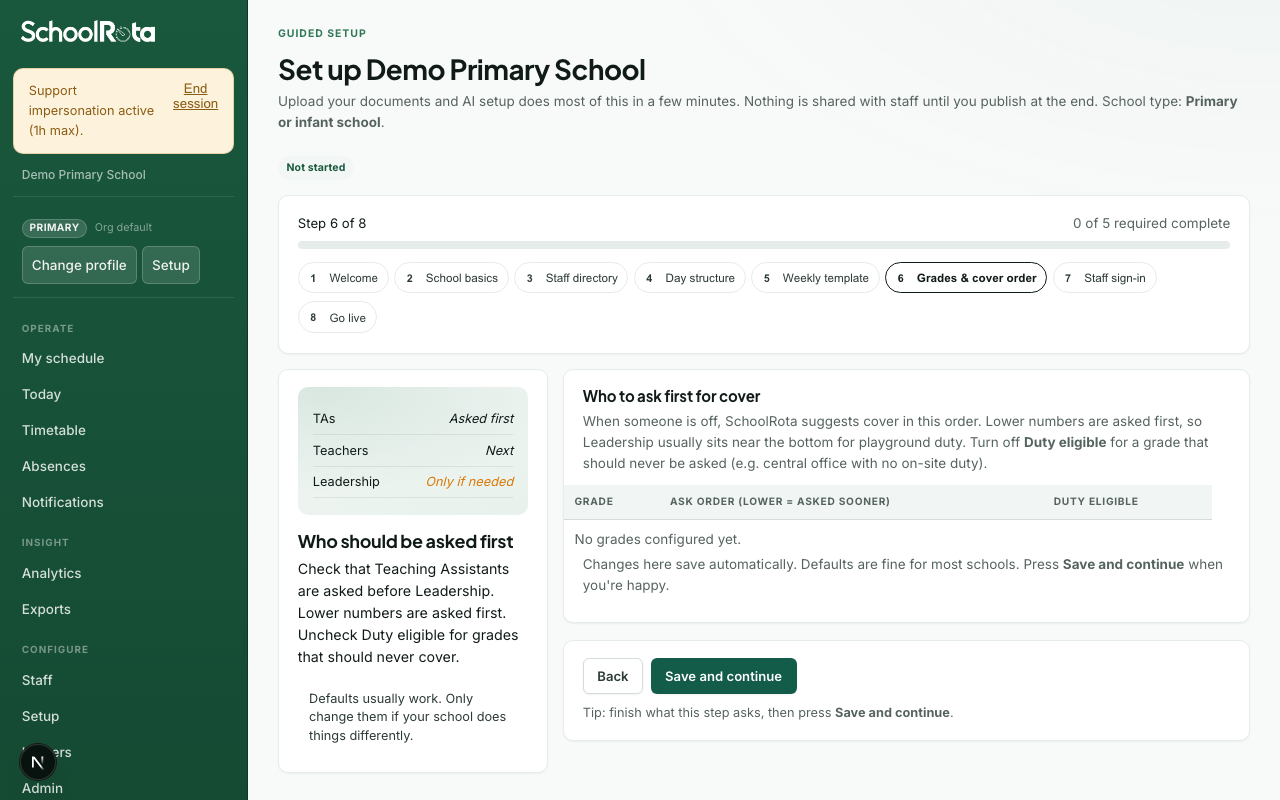
| Where to click | Pick a traffic light for each grade: Can be used if available, Only if seriously needed, or Cannot be used. |
| Recommended | Teaching Assistants available. Leadership and office only if seriously needed. Press continue if that already looks right. |
| You can change later | The same table, and each person's cover preference on Staff. |
8. Go live
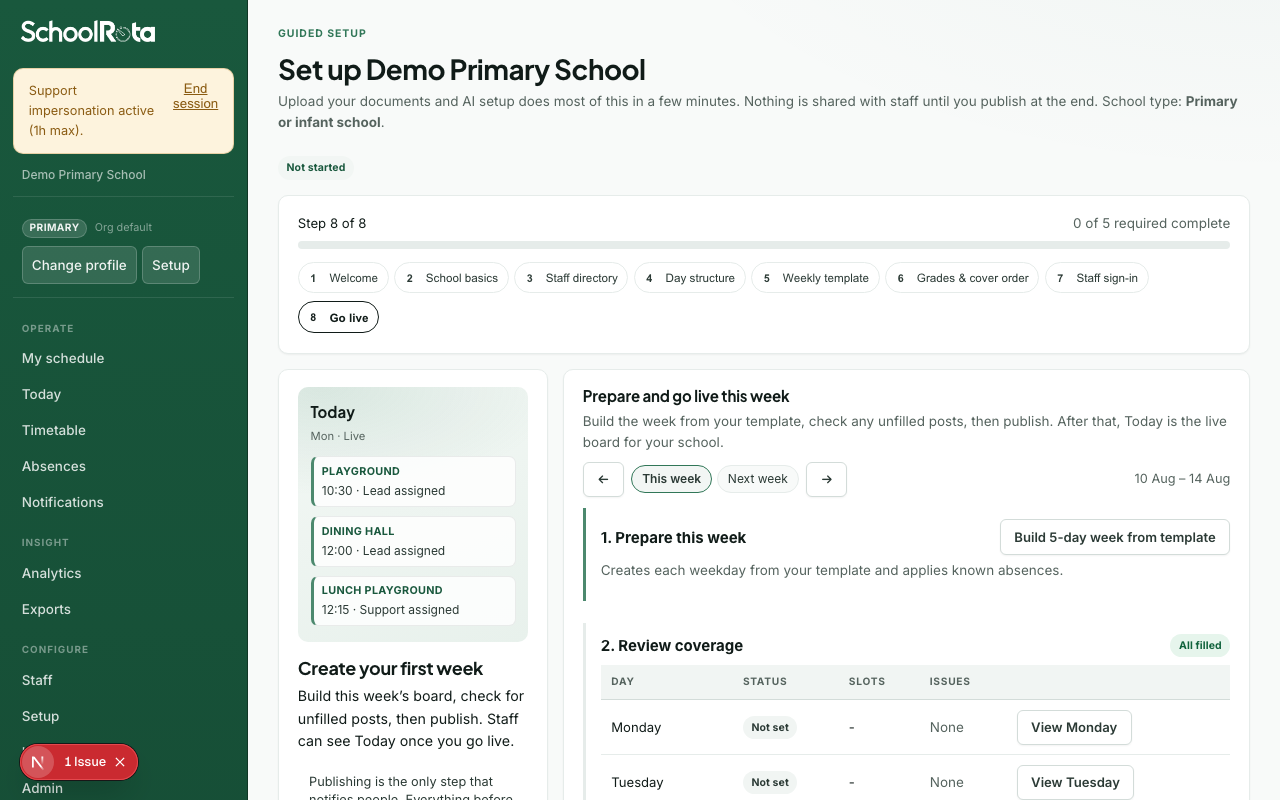
| Where to click | Build 5-day week from template first (or your school-day count). Read the coverage line (filled or unfilled). View a day to preview posts in a dialog (you stay in setup). Publish, then Go live. Finish setup later asks once if you have not built or published. |
| Recommended | Publish when the board looks like a normal day. That is the first time staff are notified. |
| You can change later | Colour, logo, and organisation name: Admin → General. Extra publishers: Settings. |
Until you mark live, Today still shows a go-live banner even if every checklist step is done. After Mark live, Today is the live board.
If you get stuck
| Problem | What to try |
|---|---|
| Cannot continue on Day structure | Add at least one duty area and save a time |
| No Lessons card | Add busy slots from Staff → Weekly blocks, or turn teaching on in Admin → School |
| Want a second upload | Press Start over at the top of Setup and choose Upload a new staff list or Upload a different rota. |
| Need every field explained | Initial setup |
What happens next
- Recording absences
- Today board
- Weekly commitments (lunches and busy slots in more depth)