

Appearance
Initial setup
Who this is for: Tenant owner, Admin
What you'll achieve: Complete the guided setup wizard from school type through your first published week
Requires role
config.manage. Tenant owner or Admin
Before you begin
- You can sign in at your school portal (for example
https://riverside.schoolrota.com). See Sign up and start your trial if you are still provisioning. - For a click-by-click path (where to click, recommended choice, what you can change later), start with Your first setup. That page also has the full setup walkthrough video. This page is the full field list.
- Optional but recommended: a staff list (use the downloadable CSV template, or the Oakfield practice files on Your first setup) and either one duty rota for the whole school, or one timetable file per person. Spreadsheet, Word, PDF, or photo all work. Import staff first so names on the files can be matched.
Blank-school onboarding does not inject real school data unless you choose Load demo training data on the Staff and rota step. Everything else is what you configure or approve.
First sign-in
Local-password owners, admins, and duty leads enrol an authenticator app before the rest of the portal. That screen looks like the login card: scan the QR code, enter a six-digit code, then Done. SSO accounts skip this and use MFA at your identity provider.
After MFA you stay in a focused wizard (no full sidebar, no Assistant). The header is Guide, Help, and Sign out. Opening Today, Settings, or Staff sends you back to this wizard until the school is ready to go live or live.
Continue moves to the next unfinished card. Work you already did on an earlier screen is skipped. Wizard Back stays on Setup. Browser Back also stays with this school’s wizard (it does not restore the full menu).
Colour, logo, and organisation name live in Admin → School after you go live, not in this wizard.
Setup state
The wizard header shows a state badge:
| Badge | Meaning |
|---|---|
| Not started | No steps completed yet |
| In progress | Some required steps remain |
| Ready to go live | All prerequisites done. Build and publish on the Go live step |
| Live | Setup marked live; Today is your operational board |
The header says you only do this once. Progress is four stages (staff list then last week's rota, check and amend, people and lunches, go live). A typical primary with no staff list yet shows: Staff and rota, Staff directory, Day structure, Who is on duty, Who we ask first, Go live.
These cards appear only when they are useful:
| Card | When you see it |
|---|---|
| Staff lunches | After at least one person is in the directory, and after you have checked the rota |
| Lessons & blocks | Secondary by default, or when teaching is on for that school |
Required cards must be complete before Mark live. Optional cards can be skipped.
Restart this school's setup
The organisation owner can throw away this school's rota data and return to the first wizard step. Press Start over at the top of Setup and type the school name to confirm.
That removes duty areas, weekly times, imported lessons, published boards, and staff who only belong to this school. Invited logins, billing, and other schools stay. The control is hidden after this school goes live. Admins who are not the owner cannot do it. Chat cannot do it.
Trusts with more than one school
If you signed up as a trust (or added extra schools in Admin → Schools), each school has its own setup:
- After first sign-in you land on the first school that still needs setup, not a blank trust home.
- Focused setup has no school switcher. Finish or skip that school first. Then the sidebar School menu lists every school. Schools that are not live yet show Setup.
- When you are in the full app, the wizard header can show Trust setup and how many schools are live. Click another school name to switch.
- Organisation name, colour, logo, and country apply once across the trust (set them in Admin → General). Duty areas, weekly template, and go-live are per school.
- Staff live in one directory. Import them on the first school. On later schools, use Add from another school (or import the same list) to attach those people without duplicating them. Choose Share them for staff who cover both schools, or Move them here if they should only appear on this school's rota. See Staff directory.
- School type is per school. Set it on the AI setup card, or later in Admin → School. Secondary turns on Lessons & blocks. Nursery starts with rooms and session times. Primary stays on playground and lunch duties.
- Names can be tidied at any time in Admin → Schools. Edit the name in place and click Save name; the sidebar menu and setup headers update straight away. The short code in the web address does not change.
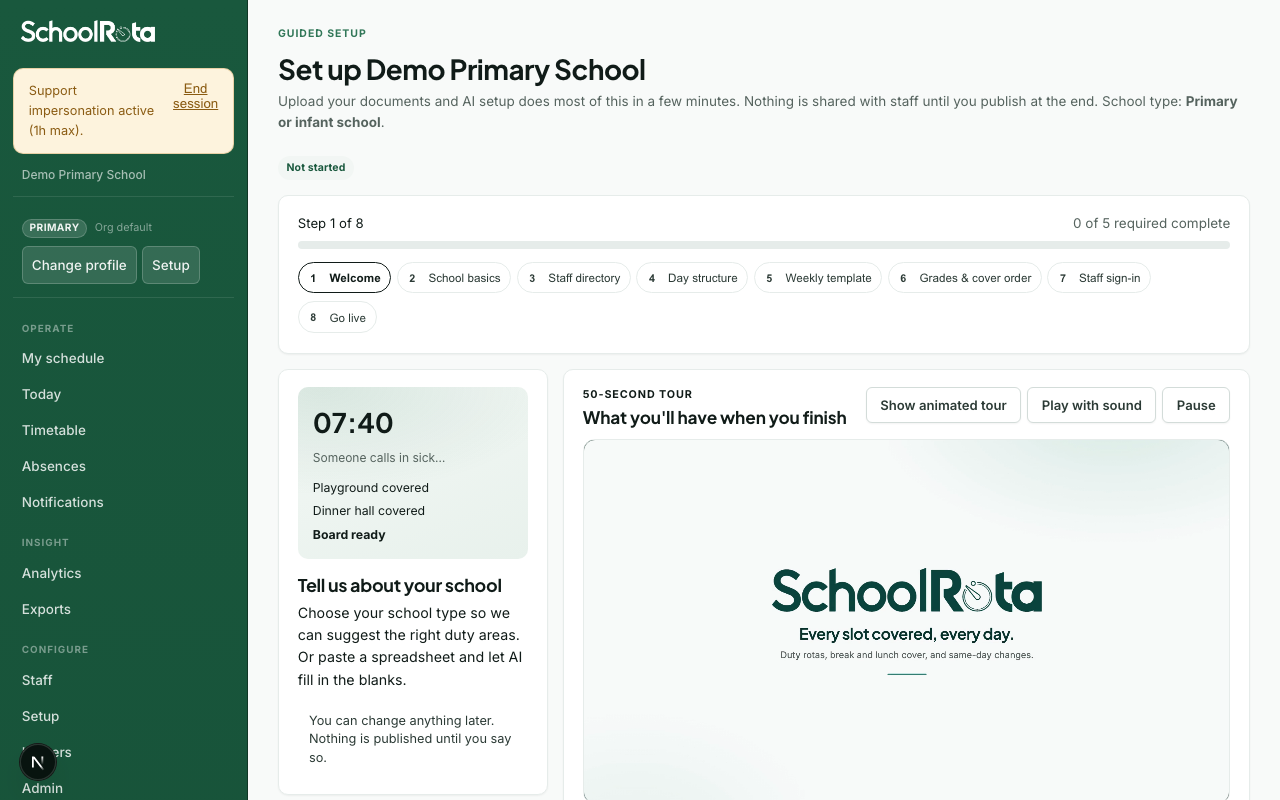
Staff and rota
- Open Setup (or land here after first sign-in).
- Watch the setup walkthrough if you want to see a full run before you click.
- Confirm country, region, and terminology under locale settings.
- Choose school type: Primary, Nursery, or Secondary. Duty area suggestions follow this choice. You can change this later from Change school type on this card, or Admin → School once the full menu is available. Changing it does not rewrite a rota that is already live.
Primary and secondary setups include Breakfast club and After-school as suggested duty areas and named periods. Add those time windows on the same board when you run wraparound. Nursery setups suggest rooms, session times, and Late collection.
Fastest path - AI setup (recommended):
- Open Staff list first. Press Download staff template, fill names, titles, emails, and cover preference (Often / Sometimes / Only if needed), then upload it.
- Open Last week's rota and upload the duty cover you already run (see One file or many personal timetables). A SchoolRota week Word export works the same way. Named staff lunches on that file become lunch windows you can amend later. Names that are not in the directory are listed so you can add them, match them, or mark them as not a person.
On the later Staff directory step, the same Download staff template button appears at the top of the import card if you skipped the welcome upload. 3. After the upload you see a short count (duty areas and times), not the full list. Press Apply zones & times on that same card to save them. The rota is not saved until you apply. School names on the letterhead are ignored. Open Fix a name or time only to change a post. Weekly names stay as suggestions. 4. After you apply, press Save and continue. The next card is Day structure, so you can review the areas and times (you do not upload the same files again). People from the rota are not pinned to duty areas yet.
Other options:
- Set it up by hand - expand Other ways to start and press Continue to walk through each step.
- Load demo training data - labelled practice staff and zones for training; replace with real data before go-live.
- Start over - at the top of Setup. Offers Upload a new staff list, Upload a different rota, and Start again with a blank weekly timetable. The owner can also wipe this school's rota data and return to the first wizard step (type the school name to confirm). Invited logins and other schools stay. A full wipe is hidden after you go live.
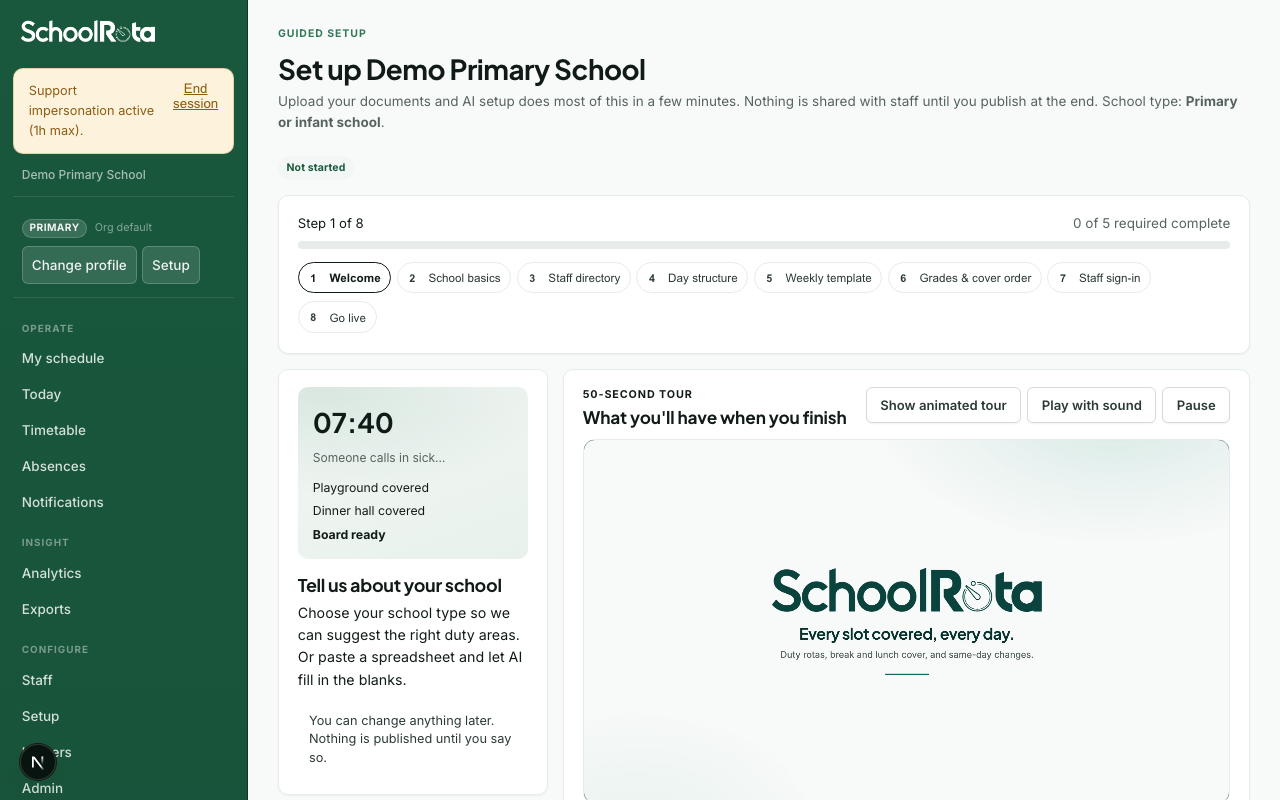
One file or many personal timetables
Use Existing timetable on Staff and rota. If you already applied a file and go back to step 1, the file picker stays on the page. Use Start over at the top of Setup to upload a new staff list or rota, clear weekly times, or, before go-live, restart the school. This builds a duty roster, not the period-by-period lesson import on Staff. Nothing is saved until you apply the short summary. A live board is not rewritten by the upload itself.
| What you have | What to upload |
|---|---|
| One spreadsheet, Word file, PDF, or photo of the whole-school duty rota | That one file, the same as previous years |
| Each staff member has their own timetable | Every personal file at once (Choose files, up to 40), or one zip of those files. Name files after the person when you can (Jo Smith.pdf) |
Spreadsheet, Word (.docx), PDF, photo, pasted text, or a zip of those files all work. Mix formats in one batch if you need to. Folders inside the zip are fine; SchoolRota uses the file name, not the folder. Nested zips are skipped. A published SchoolRota week Word or PDF (By person plus zone tables) is read in full: playground and hall posts keep their times and the number of people who were on each post (a hall with one name stays at one person, even if that week showed At risk), and Teachers Lunch becomes a staff lunch break.
A whole-school grid with columns Day, Area, Start, End, Lead, Support is read in full (breakfast, gates, cloak, playtime, hall sittings, after-school, home time), not summarised down to lunch only. A pasted list that starts with Day times and then Monday to Friday named posts (for example Breakfast club: Chloe Grant (lead), Yasmin Ali) is read the same way. An older Word pack that lists each person against Morning, Lunch, and Afternoon is also read: named posts such as KS cloakroom greeting, KS1 Duty, and KS2 playground become duty areas and weekly pins. Own break, training, and pupil lists stay off the duty roster. Friday-only times stay on Friday. TBC and similar placeholders are skipped, and that day’s post stays empty instead of being filled by cover. Title-and-initial names such as Mr C Reid match the directory when the last name is unique. Hyphenated directory names also match shorter rota forms (Mrs Michaela Cole → Michaela Wellesley-Cole, Miss Katie Parker → Katie-Anne Parker). An ambiguous last name (Mrs Patel when two Patels exist) stays unmatched so you can pick the person. Add as new staff still works if they are a different person with the same last name. Named agency people such as Agency Jane stay on the grid. If the same paste also has staff-card notes, the grid is the only source: those notes are not turned into extra pins or weekly commitments. Re-applying the rota replaces the current weekly pins so leftover cover names do not stay put.
SchoolRota merges the pack into one school duty roster: the same playground at the same time is one post, and each person who covers it is listed on that post. From a personal teaching timetable it keeps playground, hall, gate, lunch, break, cloak, corridor, and bus cover, and skips ordinary lessons (subject, class, room). Import those lessons separately with Importing a teaching timetable.
Names are matched to the directory. Names that are not in the staff list are listed so you can add them, match them to an existing person, or mark them as not a person. Use Select all, Not people (selected), or Not people (all) when the upload picked up zone labels or other junk.
Photos: the first 6 are read. Convert extra personal pages to PDF or Word so they are all included. A combined extract over 1 MB needs fewer files in the batch.
Staff directory
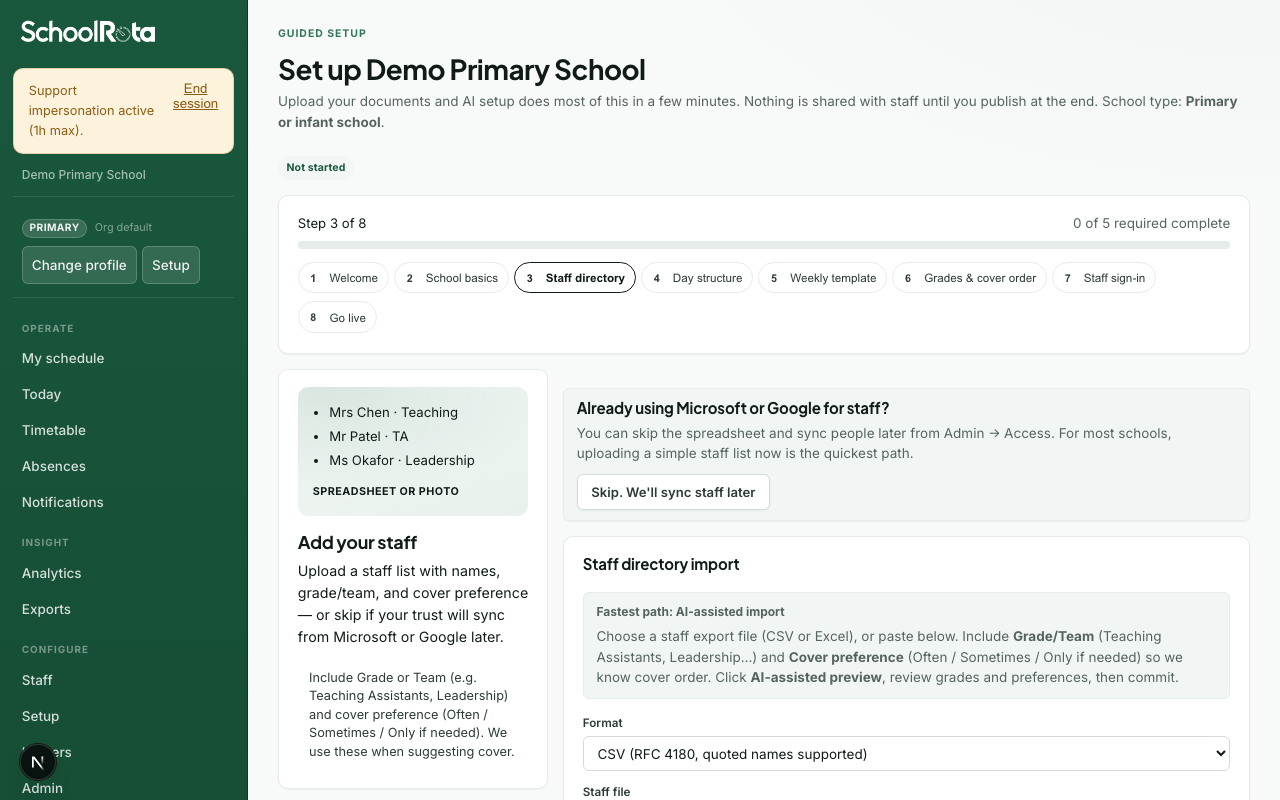
- This card is hidden if people are already in the directory from the first screen. Import staff only if you skipped that upload. Download the CSV template, fill it in, then upload. Choosing a file maps columns automatically; press Add staff to the directory to save. Include name, title, email and cover preference where possible. If a rota is already uploaded, unmatched names refresh after you add staff.
- Or open Other options and choose I will add staff later. Larger schools and trusts with SCIM enabled can skip and sync from Admin instead.
See Importing staff for column details.
Staff lunches (optional)
Staff must already exist. This card comes after you have checked last week's rota, so named lunches on that file can appear here. Answer Should we keep staff lunch breaks free of duty? Choose No if staff stay available at lunch, or if you will add windows later from Staff → Weekly blocks. Choose Yes and save a window with people ticked. If you continue without a window, we ask once.
Create lunch breaks, then assign the staff who take them. Prefer a flexible window: a longer sitting (for example 11:30–14:00) where each assigned person gets a short staggered break (usually 30 minutes) so some stay on duty. A fixed break is the same short time for everyone on it (for example 12:00–12:30). If you started with Fixed and want stagger, switch to Flexible and press Save this lunch break. Then build or rebuild the week so the board shows the breaks. You can create more than one of each. Staff with no lunch break stay available and are highlighted on this step.
Worked example for staggered staff lunches (not pupil sittings): give KS1 staff a fixed break at 11:45–12:15, and KS2 staff a later fixed break at 12:15–12:45. The two windows can overlap. Rebuild still treats each as that person's own break, never a pupil lunch sitting. For covering children's KS1 and KS2 sittings, use Day structure times on the hall or playground.
- Add a lunch break, choose fixed or flexible, set the times and days, and tick the people who take it.
- Repeat for another group if needed, or use each person's dropdown once a window exists.
- Rebuild later so flexible breaks appear on the timetable. Rebuild tries several legal lunch-cover and break layouts and keeps the one that covers posts and assigned breaks best. Often who are free take a later lunch post before Sometimes. If nobody can cover, the day notes that they had no break.
The engine will not place assigned people on an overlapping post when you later build the week. Chat can list and set the same windows. See Weekly blocks.
Select Save and continue after you save at least one window, or Continue without lunch breaks if you chose No.
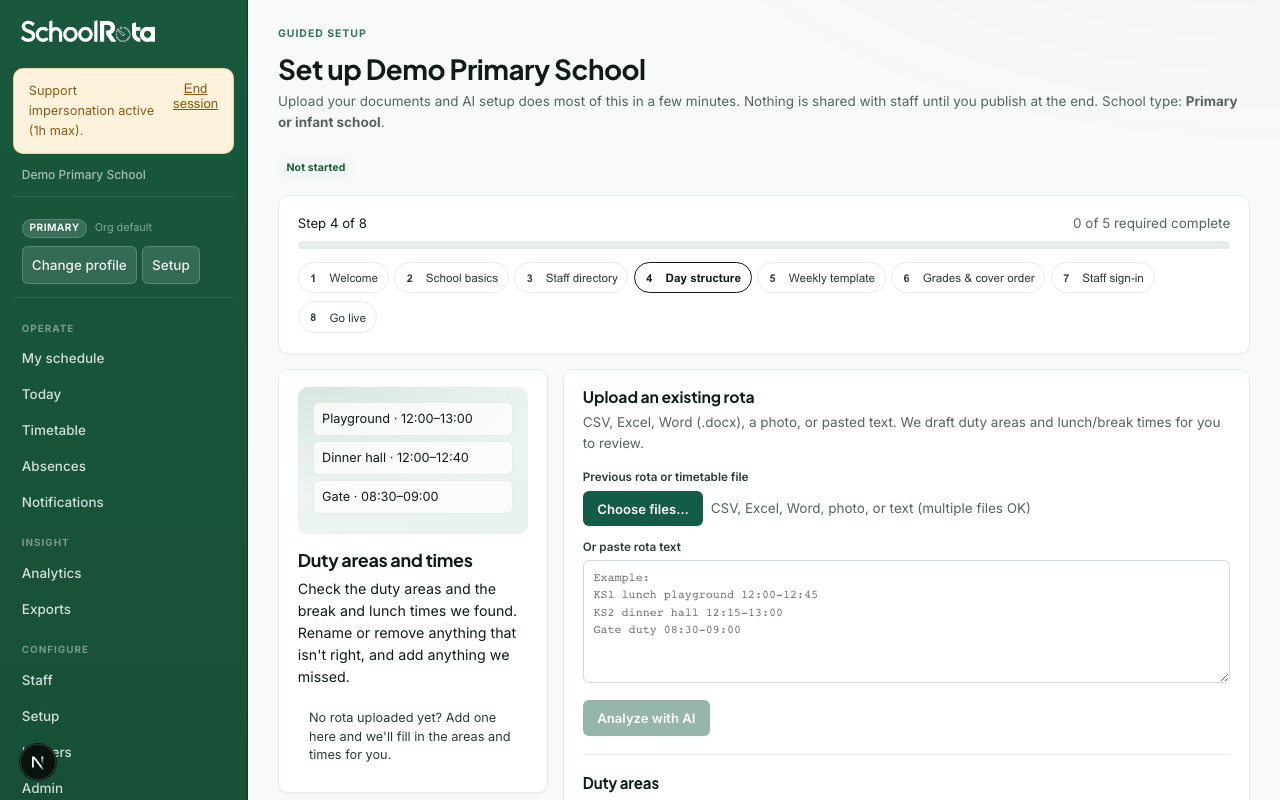
Day structure
- If you already uploaded a rota or personal timetable pack on AI setup, this step is a review. You do not upload the same files again. Check duty areas (posts) and time windows. Rename or remove anything wrong. Remove on a duty area deletes that post plus its weekly times and day-board sessions (people assigned only to those posts come off them). If the same post appears twice (for example two KS1 Playtime rows), a warning offers Remove extra from all rotas. That deletes the extra from the weekly template and every day board, and leaves the original. Suggested weekly names from the upload are not pinned yet. You choose those on the Weekly template step. To replace the uploaded file, use Start over at the top of Setup and choose Upload a different rota.
- If you skipped the upload on AI setup, select Add suggested … posts for your school type, or upload a whole-school rota or a pack of personal timetables here, then edit the list.
- Open Check or edit duty areas to see the list. Each row shows the name and a short times summary. Open a duty area to rename it, edit weekly times, or remove it. Change the start or end, then Save times (that updates every matching school day). Remove time drops that window only. Rows with no weekly time yet say No times set yet. Use Set times, or Add another time, on the open duty area to add another window. Then answer Do any duty areas need more than one person at the same time? Choose Yes to set headcount, a lead, a skill, or a split. Choose No to keep one person on each post.
- When adding a new window, set the start, end, and headcount. Need a lead stays off unless you tick it. Select Save for {n}-day week to add that time across your operating days.
- If you chose Yes, change People needed (that is the number rebuild fills). Ideal is a stretch target only. Save Mon (or that weekday) updates that session only. Copy to other days copies the same numbers to matching times on the rest of the week. Leaving the step also saves unsaved day-by-day numbers. Then on Go live press Build week from template again. Tick Need a lead if that post must have a designated lead, and set a required skill so only people with that skill are proposed. Each card lists who is pinned on that weekly post. Use Replace or Remove so rebuild no longer copies the old name. Use Split when one person should cover the first half of a window and another the second: SchoolRota cuts the window into two consecutive sessions (optionally at a time you choose, and optionally on matching days). People already pinned stay on the first half. The second half starts empty so you can assign someone else. Do not raise people needed to 2 if you want a handover: that means two people for the whole window. Rebuild copies the weekly times as they are. It does not cut lunch posts into halves from the staff break length. Only Split creates those halves.
Children's lunch sittings (duty cover)
When KS1 and KS2 eat at different times, that is duty cover on the hall or playground, not a staff lunch break. Staff lunches take people off duty. Sitting times put people on duty.
Worked example on Dining hall (or playground):
- Select Set times for the first sitting, for example
11:45–12:25, then set minimum and ideal headcount for KS1. - Select Add another time on the same duty area for the second sitting, for example
12:20–13:00for KS2. The windows can overlap if both groups still need staff at once. - Use two duty areas instead (KS1 hall and KS2 playground) when the places differ.
- Use Split on one sitting when the same post hands over halfway (one person first half, another second half). Chat can do the same (
split_duty_session).
Rebuild and publish the week so Today matches the new times. SchoolRota does not record which children ate.
Press Save and continue when at least one duty area and one time window exist.
To throw away the weekly duty times and start again, open Start again with a blank weekly timetable on this step (or on Weekly template). That removes every duty time and who is assigned on it for this school. Staff, duty area names, imported lessons, and already published days stay. Add times again, or upload a rota. If the school is already live, rebuild and publish a week so the live board matches the new times.
Imported lesson times are separate. Clear those with Clear timetable on the Lessons and weekly blocks step.
Skills and first aid
Tick skills on people in Staff. Require the same skill on a session (for example first_aider on lunch) so cover only proposes people who have it. Every person on that session must hold the skill. Rebuild drops anyone already pinned there who does not have it. Add a named skill such as Gate duty when only some staff should cover that post.
Lessons and weekly blocks (optional)
This step is where you tell SchoolRota when staff are already busy, so cover is never put on top of teaching. Secondary schools see it by default. Primary and nursery setups hide it unless teaching is turned on for that school. Answer Do staff have lessons or weekly busy times we should work around? Choose No if you only run break and lunch duty. Choose Yes and add lesson times or a weekly block before you continue.
- Import lesson times by pasting or uploading a CSV. Rows are matched to staff by email first, then name; anything unmatched is listed so you can fix it before committing. See Importing a teaching timetable for column details.
- Optionally open Two-week timetable and set a Week A start date if you run Week A / Week B.
- Optionally open Weekly blocks, then Open Staff to add weekly blocks for recurring commitments such as PPA, phonics, intervention or meetings. If you uploaded a support-staff rota on AI setup, every staff-card line is listed there (phonics, P4L, cover, duty, lunch, and the rest) so you can keep or remove them before applying. See Weekly commitments.
Anyone teaching or blocked during a duty window drops to the bottom of the cover list and is flagged with an amber tag on the board. Whether that also stops publishing is your choice under Cover policy.
To keep lesson times fresh without re-importing, host a CSV and use Staff → Teaching → Sync now. Native MIS connectors and scheduled refresh are coming soon.
Weekly template
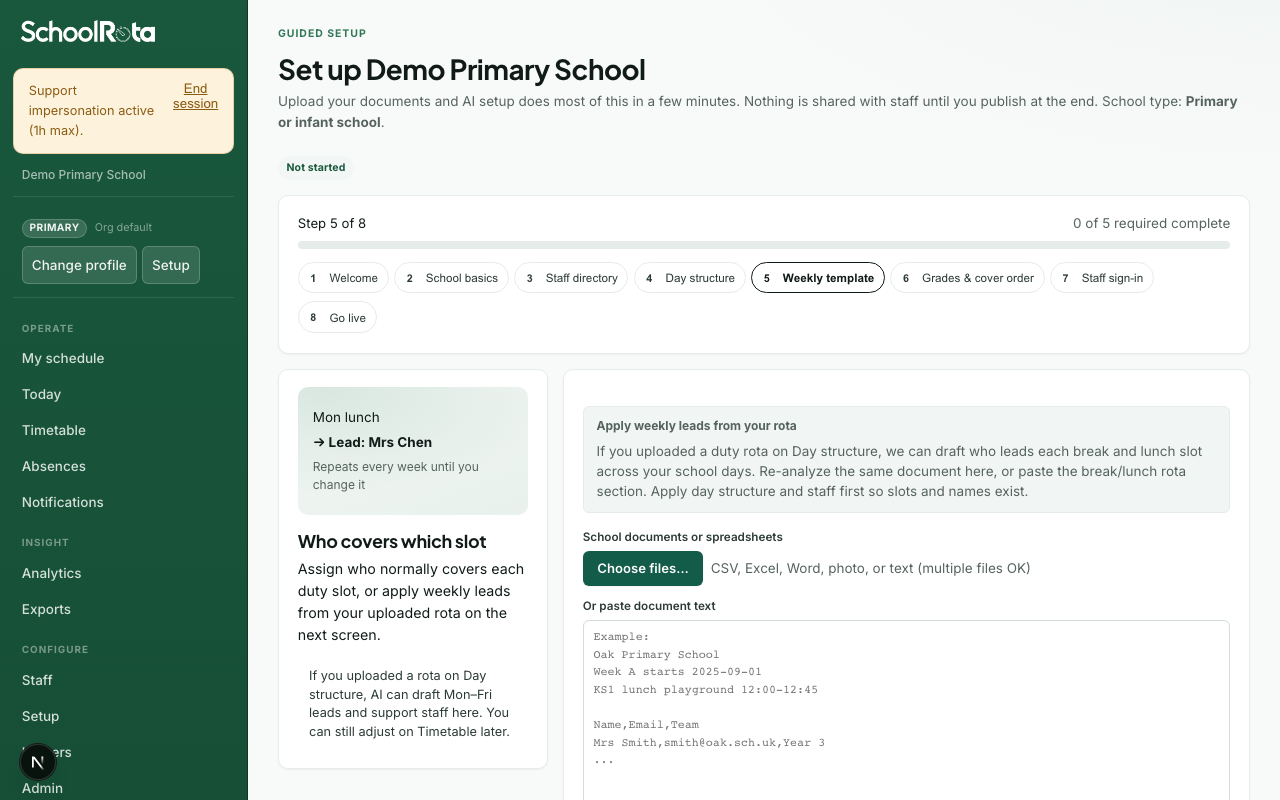
- If the rota upload found names, SchoolRota asks before pinning them. Choose Accept these names, Edit, remove or add, or Don't pin anyone. Pinning means those people appear on every new week until you change them. Don't pin leaves the duty times in place and lets rebuild pick cover.
- If names were already pinned from an earlier apply, you are asked to Keep these names, Edit names, or Clear all pinned names. Edit opens the weekly list so you can replace or remove people one by one.
- Review Who stays on each duty every week. Anyone listed here is copied onto new weeks. Use Replace (the same staff picker as Timetable) or Remove if they should not stay. Clear all pinned names at the top clears every weekly name and leaves the duty times. If a pinned person is off sick on a built day, they come off that post and cover is filled. They stay on this list for later weeks. Chat can list, pin, replace, remove, or clear the same weekly names (
list_slotswith no date,assign_template_person,replace_template_person,remove_template_person,clear_all_template_people). Say the person, duty, and day. - You can still upload or re-apply a rota, or assign someone manually: pick a day and duty time, then a person.
- Press Save and continue after you have answered the pin question (or assigned names by hand). Already-built days stay as they are until you rebuild.
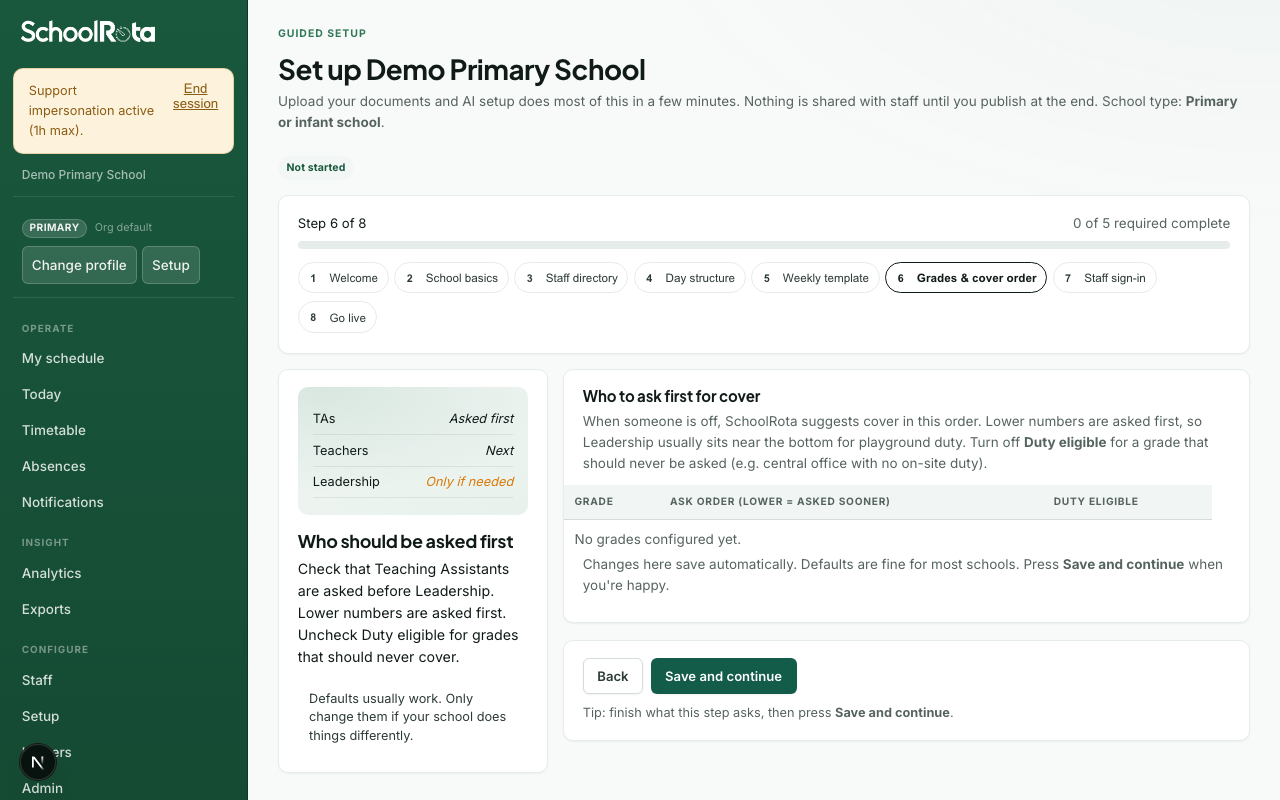
Grades and cover order
- Review each grade's traffic light: Can be used if available, Only if seriously needed, or Cannot be used.
- Teaching Assistants start as available. Leadership and office start as only if seriously needed. Use cannot be used for a grade that should never cover.
- Spot-check office/reception people on Staff. They should be Only if needed unless your school wants them in the normal cover pool.
- Changes save when you pick a light. Press Save and continue when satisfied.
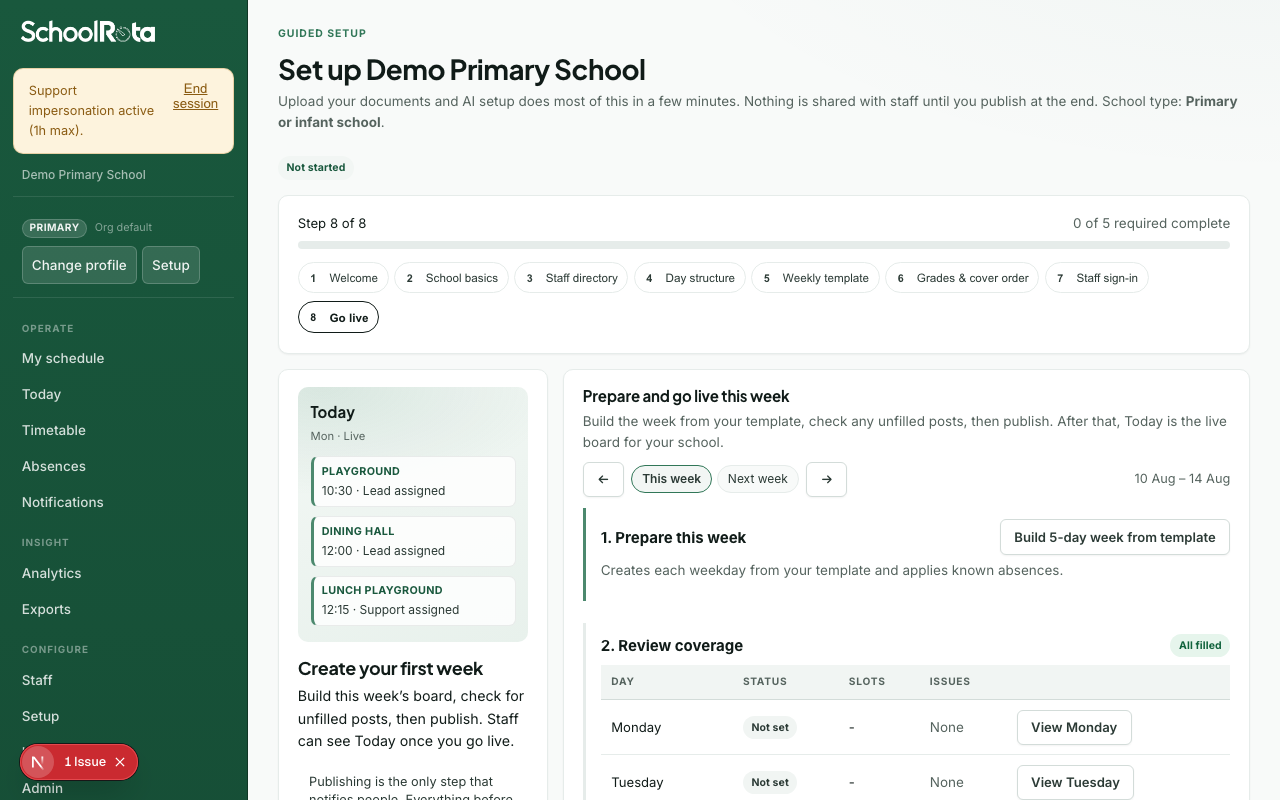
Go live
- Build a sample week from your template (runs the cover engine).
- Review unfilled posts. View a weekday to preview that day's posts without leaving setup. Weekly-block overlaps are normal and do not stop publish.
- Publish the week when satisfied (this notifies staff per your rules).
- Select Go live after you have published at least one day. Finish setup later asks once if you have not built or published: staff will not see a board until you do. Until you mark live, Today still shows a banner: the checklist can say every required step is done, but the school is not live yet.
- Optionally set school name, logo and colour in Admin → General. That is not required to go live. Invite extra people who should publish from Settings after you are live.
For a fuller walkthrough of the review flow, see Go-live checklist.
What happens next
Troubleshooting
| Problem | What to try |
|---|---|
| Cannot continue on Day structure | Add at least one duty area and save a time window. Continue without choosing cover numbers asks once |
| Lessons and weekly blocks not needed | Choose No, or continue twice to confirm you are skipping |
| Continue on Staff lunches | Choose Yes or No. Continue without a window asks once |
| Landed on Account after MFA | That is expected only while you enrol. After Done, you should see the wizard, not the full Account settings page |
| Full menu appeared during setup | Reload Setup. The full sidebar only appears after the school is ready to go live or live |
| Cannot continue on Weekly template | Assign at least one lead, or re-apply your rota |
| No staff to assign | Go back to Staff directory or skip staff and add people later |
| Gaps after generate | Adjust template assignments, grades, headcount, or commitments - then rebuild |
| AI draft looks wrong | Open Fix a name or time, change that section, then apply. You do not need to read every row |
| Personal files did not merge | Select every file in one go, or upload one zip of those files. Name files after the person (Jo Smith.pdf). Check the draft lists several people on the same lunch or playground post before you apply |
| Zip had no rota files | Put CSV, Excel, Word (.docx), PDF, photos, or text in the zip. Nested zips and Finder junk folders are ignored |
| Extra photos were skipped | Only the first 6 photos are read. Convert the rest to PDF or Word and upload again |
| Combined upload is too large | Remove some files. Extracted text for the batch must stay under 1 MB |
| Lessons appeared as duties | Ordinary lessons are skipped on this step. Keep playground, hall, gate, lunch, and break cover. Load lessons on Staff → Teaching timetable (CSV) |
| Same duty twice (for example KS1 Playtime) | Use Remove extra from all rotas on Day structure or Admin → Cover rules. Adding suggested posts or the same time window again will not create a second copy |
| Need a blank weekly timetable | On Day structure or Weekly template, open Start again with a blank weekly timetable. Lesson imports are cleared separately on Lessons and weekly blocks |
| Need the whole wizard from scratch | Press Start over at the top of Setup. The owner types the school name to wipe this school's rota data. Only before go-live. Staff who only belong to this school are removed; invited logins stay |